
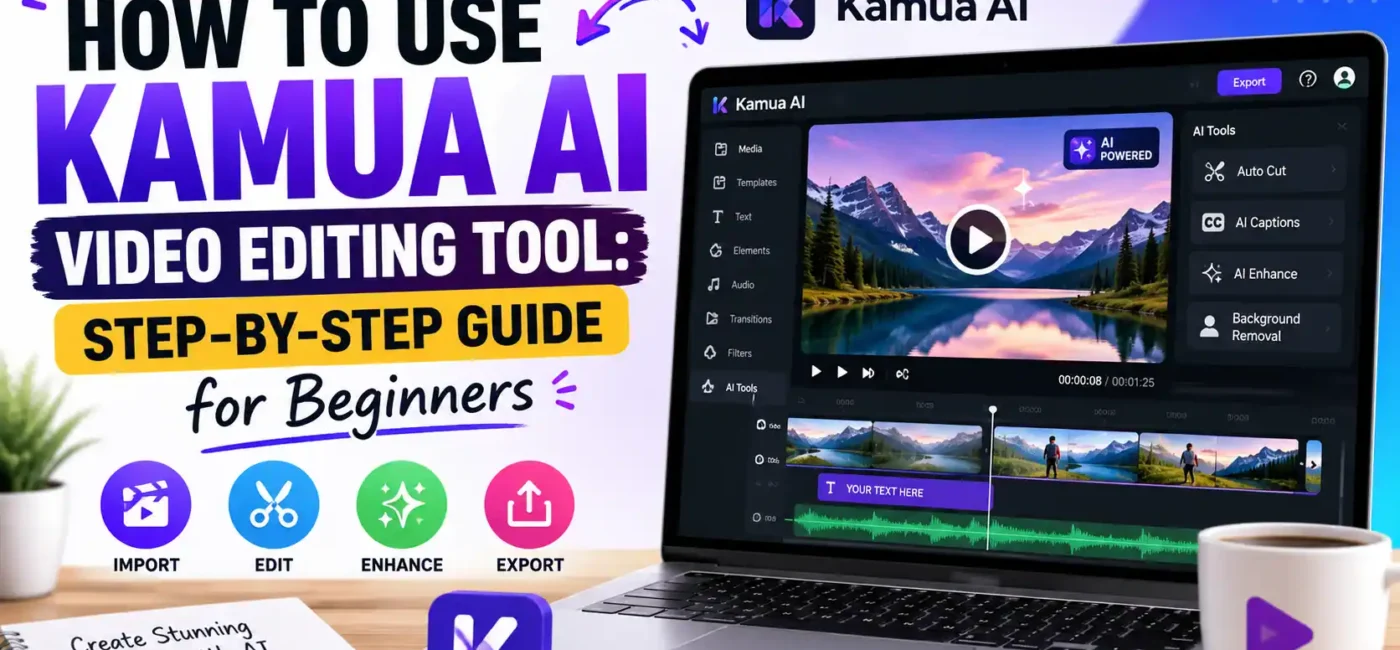
Kamua AI is a cloud-based AI video editing platform designed to automate the most time-consuming parts of video production. Instead of manually cutting clips, adjusting frames, or creating subtitles, the tool uses artificial intelligence to handle these tasks in seconds. This makes it especially useful for creators who want fast content production without deep editing skills.
At its core, Kamua focuses on simplifying video repurposing. You upload a long video, and the system automatically transforms it into short, social-media-ready clips. It is widely used for platforms like TikTok, Instagram Reels, and YouTube Shorts because of its smart resizing and caption generation capabilities.
The growing demand for short-form video content has made tools like Kamua extremely popular. In 2026, creators are prioritizing speed and automation over manual editing precision. Kamua fits perfectly into this trend by offering an AI-first workflow that removes repetitive editing tasks and lets users focus on storytelling instead of technical work.
Why are creators switching to AI video editors?
Video content creation has become faster and more competitive than ever. Audiences expect daily uploads, high engagement, and platform-specific formatting. Traditional editing tools require too much time, especially for beginners.
That’s where AI tools like Kamua change the game. Instead of spending hours trimming clips, users can generate multiple versions of the same video in minutes. The rise of automation has enabled solo creators and small businesses to produce professional-level content without hiring full-time editing teams.
Key Features of Kamua AI
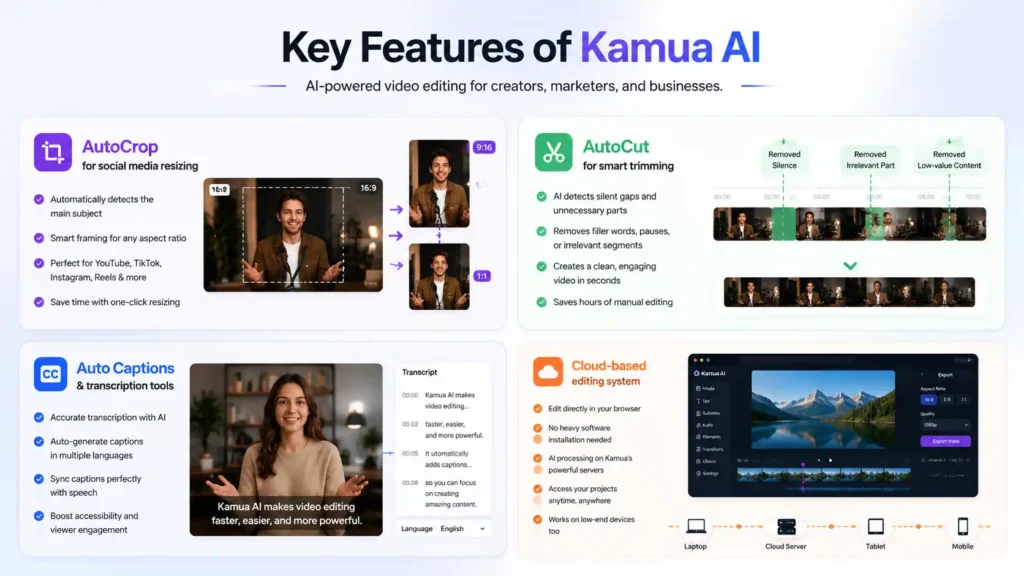
AutoCrop for social media resizing
One of the standout features is AutoCrop, which automatically adjusts video framing for different aspect ratios. If you upload a widescreen YouTube video, Kamua can instantly convert it into vertical or square formats.
This is extremely useful for multi-platform posting. You no longer need to manually reposition subjects or adjust timelines for each platform. The AI detects the main subject and keeps it centered across different formats.
AutoCut for smart trimming
AutoCut helps remove unnecessary parts of a video automatically. It scans the footage and identifies silent gaps, irrelevant segments, or low-value content.
For creators who record long videos, this feature saves hours of manual editing. Instead of scrubbing through timelines, you can rely on AI suggestions to build a cleaner final video.
Auto Captions and transcription tools
Subtitles are essential for engagement, especially on mobile platforms. Kamua includes automatic transcription and caption generation, which improves accessibility and viewer retention.
The AI not only generates captions but also syncs them with speech timing. This eliminates the need for manual subtitle editing, which is often one of the most time-consuming parts of video production.
Cloud-based editing system
Since Kamua is cloud-based, there is no need for heavy software installation. You can edit videos directly in your browser. This makes it accessible on low-end devices as well, as most processing happens on Kamua’s servers.
Pricing and Plans Overview
Free plan vs paid tiers
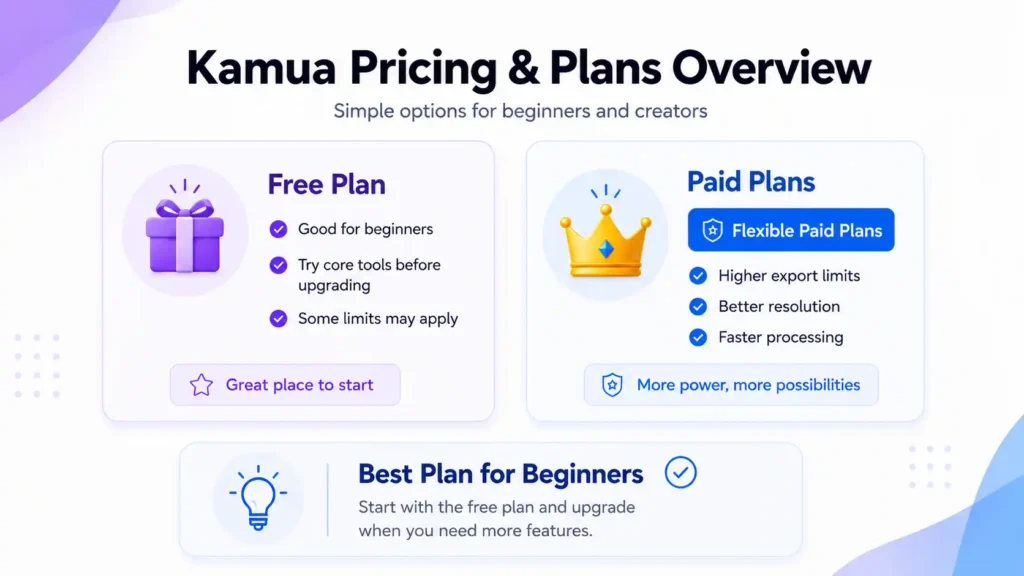
According to recent 2026 pricing data, Kamua offers a freemium model with basic access available at no cost. Paid plans start at approximately $1.66 per month, making it one of the most affordable AI video tools available today.
The free version is ideal for beginners who want to explore features like AutoCrop and AutoCut before committing financially. However, export limits and watermarks may apply depending on usage.
Paid plans unlock higher export limits, better resolution, and faster processing speeds. This makes them more suitable for professional creators and agencies.
Which plan is best for beginners
For beginners, the free plan is usually enough to get started with the platform. Once you start producing regular content, upgrading to the entry-level paid plan is recommended because it removes limitations and improves workflow efficiency.
How to Create an Account on Kamua
Getting started with Kamua is simple and beginner-friendly. You don’t need technical experience or software installation.
First, visit the official Kamua platform and click on the sign-up button. You can register using your email address or connect a Google account. After verifying your email, you will gain access to the dashboard where all editing tools are available.
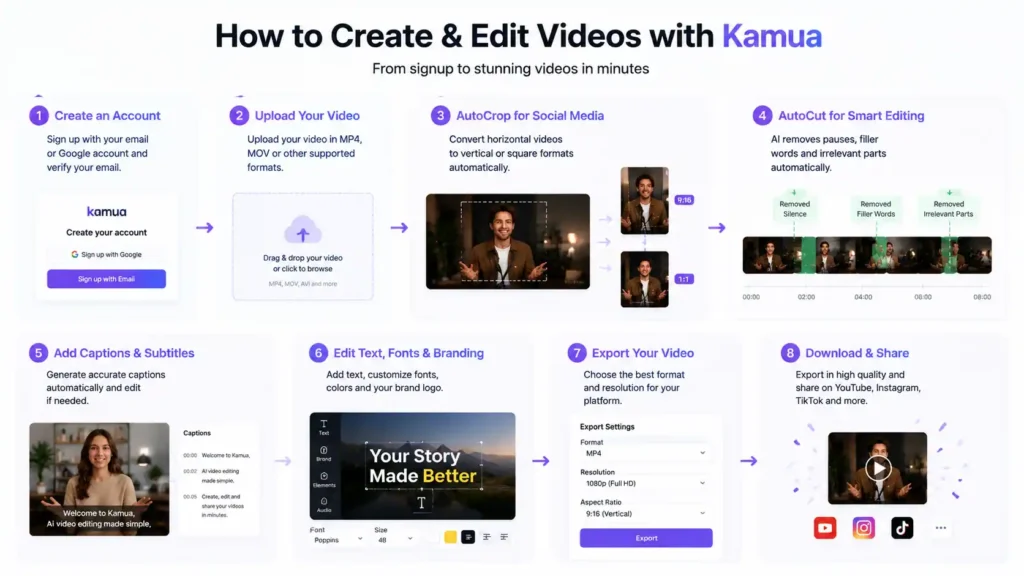
Once inside, the interface is clean and minimal. You will see options to upload videos, start a new project, or explore templates. The onboarding process is designed to guide beginners without overwhelming them with technical jargon.
Uploading Your First Video
Kamua supports common video formats like MP4, MOV, and other widely used file types. This ensures compatibility with most recording devices and cameras.
After uploading, the system automatically processes your video and prepares it for editing. Depending on file size, processing may take a few minutes. Once complete, your video appears in the editing workspace where AI tools become available.
Using AutoCrop for Social Media
One of the most powerful features is the ability to convert horizontal videos into vertical formats automatically. This is essential for platforms like TikTok and Instagram Reels.
The AI detects the most important subject in each frame and keeps it centered while adjusting the rest of the frame accordingly. This prevents awkward cropping and ensures professional-looking results without manual adjustments.
Creators often use this feature to repurpose long YouTube videos into multiple short clips for social media distribution.
Using AutoCut for Smart Editing
AutoCut is designed to simplify the editing process by analyzing video content and removing unimportant sections. This includes pauses, filler content, or irrelevant segments.
Instead of manually cutting clips, users can rely on AI recommendations. This speeds up workflow dramatically and allows creators to focus on storytelling instead of technical trimming.
For vloggers, educators, and marketers, this feature is especially valuable because it reduces editing time from hours to minutes.
Adding Captions and Subtitles
Captions are automatically generated based on speech recognition. The AI listens to your audio and converts it into text, which is then synced with video timing.
You can also edit captions manually if needed. This ensures accuracy while maintaining speed. Subtitles improve accessibility and engagement, especially for viewers watching without sound.
Editing Text, Fonts, and Branding
Kamua allows users to add text overlays, adjust fonts, and insert branding elements like logos. This is important for businesses and content creators who want to maintain brand identity.
You can customize color, position, and animation styles to match your content theme. This feature makes even simple videos look professional and visually appealing.
Exporting and Downloading Videos
Once editing is complete, users can export videos in multiple formats optimized for different platforms. Whether you’re uploading to YouTube, Instagram, or TikTok, Kamua ensures correct resolution and aspect ratio.
Exporting is fast and optimized for quality retention. This means your final video maintains clarity without compression loss.
Best Use Cases for Kamua AI
Social media content creation
Kamua is especially powerful for social media creators who need fast, consistent content output. The automation features make it easy to produce multiple videos per day.
Marketing and ad videos
Businesses use Kamua to create promotional content and advertisements. The ability to quickly generate multiple video versions makes A/B testing easier and more efficient.
Common Mistakes Beginners Make
Over-editing AI outputs
Many beginners try to manually adjust every AI suggestion. This defeats the purpose of automation and slows down workflow. It’s better to trust AI suggestions and make minor adjustments only.
Ignoring aspect ratio optimization
Another common mistake is ignoring platform-specific formatting. Always ensure your video is optimized for the target platform using AutoCrop.
Tips to Get Better Results
Workflow optimization tricks
To get the best results from Kamua, always start with high-quality raw footage. The better your input, the better your AI output will be. Also, use batch processing for multiple videos instead of editing one by one. This saves significant time and improves consistency across your content.
Alternatives to Kamua AI
If Kamua doesn’t meet your needs, there are several alternatives available in the AI video editing space. Tools like Descript, Runway ML, and CapCut offer similar automation features but differ in pricing and complexity.
Some tools focus more on generative AI, while others focus on traditional editing enhanced by AI features. Choosing the right tool depends on your workflow and content goals.
FAQs
1. Is Kamua AI free to use?
Yes, Kamua AI provides a free plan that allows beginners to explore the platform without any upfront cost. It is useful for testing basic features like video uploading, simple AI edits, and limited export options. However, the free version is designed more for learning and testing rather than full professional use. Some advanced tools, higher resolution exports, and faster processing speeds are usually locked behind paid plans. If you are a beginner, the free version is enough to understand how the platform works and whether it fits your workflow. But for regular content creation, upgrading becomes important for smoother performance and better output quality.
2. Can Kamua convert YouTube videos into shorts?
Yes, Kamua is built specifically for repurposing long videos into short-form content. It uses AI to automatically detect key moments, remove unnecessary sections, and reframe the video into vertical formats. This makes it ideal for platforms like YouTube Shorts, TikTok, and Instagram Reels. Instead of manually cutting clips, you can let the AI handle most of the work. It saves time and helps creators turn one long video into multiple short clips for wider reach.
3. Does Kamua add watermarks?
In the free version, there may be limitations such as watermarks or restricted export quality depending on the current plan setup. This is common in most AI editing tools. If you upgrade to a paid plan, these restrictions are usually removed, allowing you to download clean, professional videos without branding. This makes paid versions more suitable for business or client work.
4. Is Kamua good for beginners?
Yes, Kamua is very beginner-friendly because it removes complex editing steps. Instead of dealing with timelines and manual cutting, users rely on AI automation. Features like AutoCrop, AutoCut, and automatic captions simplify the entire process. Even someone with no editing experience can create professional-looking videos quickly. This makes it a strong choice for new creators.
5. What makes Kamua different from other editors?
Kamua stands out because it focuses heavily on automation rather than manual editing. Traditional editors require time, skill, and detailed adjustments, while Kamua uses AI to speed up the process. It automatically crops videos for different platforms, removes unnecessary parts, and generates captions. This allows creators to produce more content in less time, which is especially useful for social media growth.