
Visual content has become a cornerstone of digital communication, from social media posts to professional portfolios and e‑commerce product listings. But not all images are perfect straight out of the camera or generation tool — that’s where AI image enhancers come in. These game‑changing tools use cutting‑edge artificial intelligence to dramatically improve the quality of your visuals, transforming blurry, low‑resolution, or poorly lit images into sharp, eye‑catching masterpieces. In 2026, the landscape for AI image enhancement tools has never been more impressive, offering options for beginners, pros, and everyone in between.
In this comprehensive blog post, we’ll dive deep into the world of AI image enhancement — what it is, how it works, top tools available now, how to choose the right one for your needs, and best practices for creating visuals that truly stand out online.
Why AI Image Enhancers Matter in 2026
As digital content creators, marketers, and photographers, the quality of your visuals directly impacts engagement, conversions, branding perception, and professional credibility. Traditional image editing tools require significant skill, time, and manual effort. But today’s AI image enhancers automate and supercharge this process by using neural networks trained on millions of images to analyze and improve your photos. Instead of simple scaling or sharpening filters, modern enhancers reconstruct missing details, remove noise, correct colors, and upscale images to high resolutions while preserving natural textures.
Whether you’re a social media influencer trying to grab attention with stunning visuals, an e-commerce seller sharpening product shots for sales pages, or someone looking to restore old family photos, AI image enhancers are now indispensable tools. Let’s explore how they work and why they’re so powerful.
What Is an AI Image Enhancer?
At its core, an AI image enhancer is software that uses artificial intelligence — especially deep learning models like ESRGAN, SwinIR, and diffusion‑based networks — to improve image quality far beyond what traditional editing could achieve. Instead of just stretching pixels during resizing, AI models are trained to recognize real patterns, edges, textures, and details from a massive dataset of images. When you upload a low‑quality picture, the AI “recreates” plausible high‑resolution detail rather than merely guesswork interpolation.
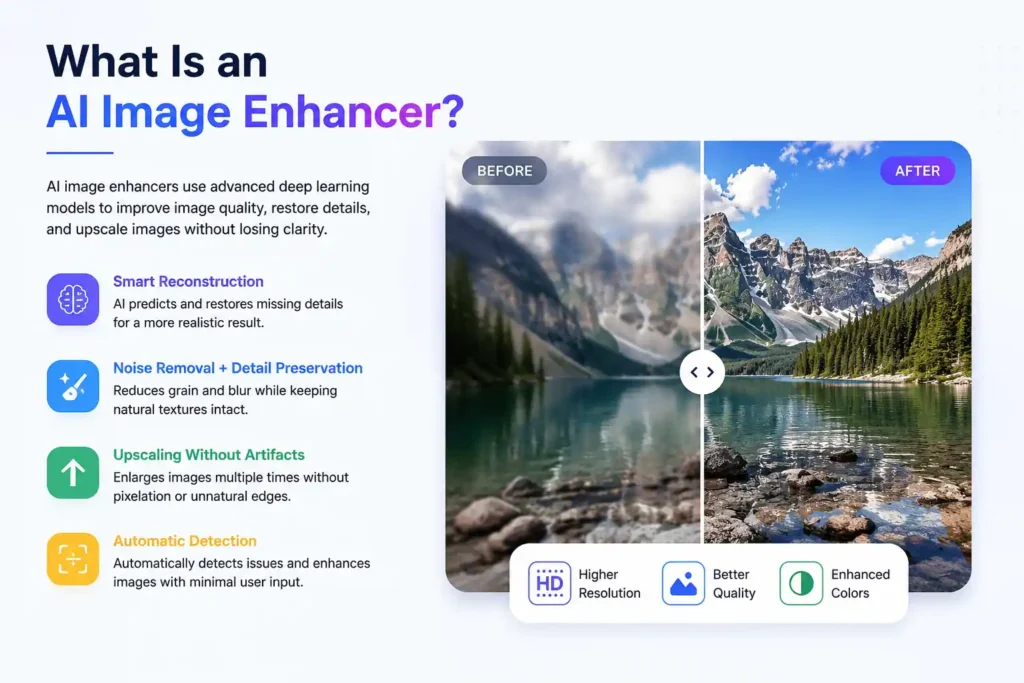
Here’s how it’s different from old school editing:
- Smart Reconstruction: AI predicts which features should be present in the image and adds realistic detail.
- Noise Removal + Detail Preservation: Reduces grain, blur, and compression artifacts while keeping natural textures.
- Upscaling Without Artifacts: Enlarges images up to many times the original size without pixelation.
- Automatic Detection: Modern enhancers automatically identify issues like blur, low contrast, or lost detail and fix them with minimal user input.
These advancements make AI enhancers ideal for fixing everything from blurry smartphone photos to tiny thumbnails for print and social media banners.
How AI Image Enhancers Work — In Simple Terms
To understand why these tools are so powerful, imagine this: traditional methods take your photo and either stretch it or try to sharpen what’s already there. In contrast, AI enhancement works like a smart translator — it understands the visual language of images and fills in missing information using learned patterns from real world data. In practice, this means:
- The AI analyzes the photo and detects edges, textures, noise, and blur.
- It then applies a trained neural network model that knows what sharp details should look like.
- Instead of guessing, the system generates new pixel information to improve clarity, color, and resolution.
Because of this neural network approach, the final output looks natural and professional — rather than “over‑edited” or artificial.
Modern image enhancers commonly incorporate multiple specialized models, with some focused on faces, others on landscapes, and some tailored for product shots or old photo restoration. This multi‑model strategy ensures the results look realistic and match the context of the image type.
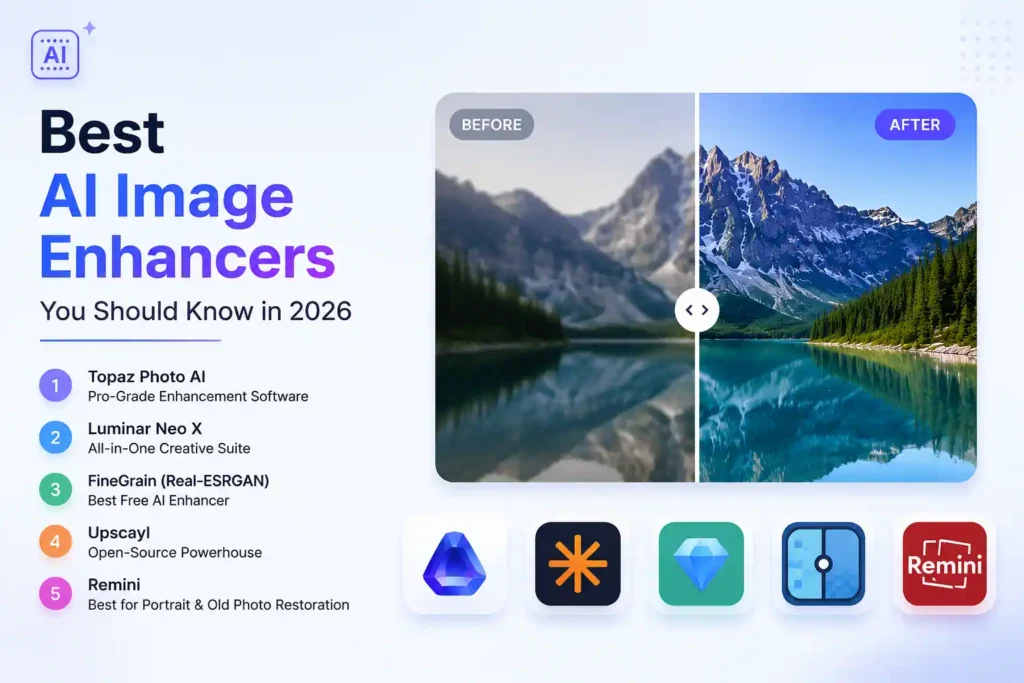
Top AI Image Enhancers You Should Know in 2026
Here’s an in‑depth look at the best AI image enhancers available today, ranging from free browser tools to professional desktop applications. Chairs ready? Let’s explore:
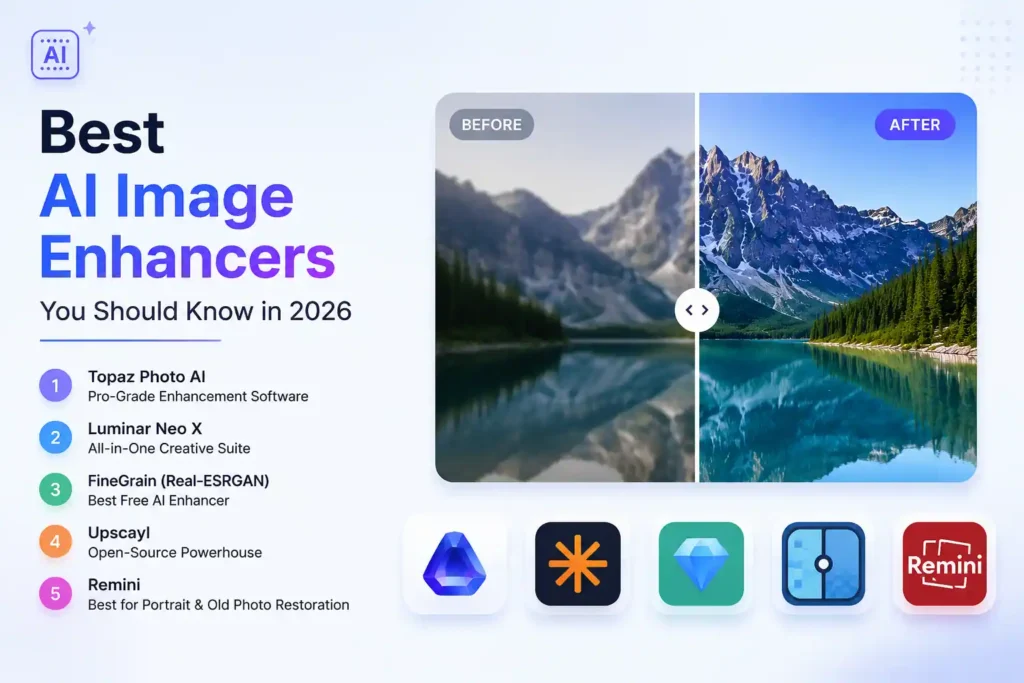
1. Topaz Photo AI — Pro‑Grade Enhancement Software
Topaz Photo AI remains one of the most powerful AI image enhancers on the market. Its latest version introduces adaptive sharpening and face recovery models trained on millions of real images, allowing it to upscale to ultra‑high resolutions, remove blur, and restore fine detail like no other tool in its class.
Key Features:
- Upscales images up to 16K resolution with minimal artifacts.
- Intelligent enhancement that fixes multiple issues automatically.
- Batch processing for large workflows.
- Excellent for photographers and creative professionals.
Why It’s Great: If quality is your top priority and you don’t mind a learning curve, Topaz Photo AI offers unmatched detail recovery and professional results.
Who Should Use It: Professional photographers, designers, and creators who demand the best output quality.
2. Luminar Neo X — All‑in‑One Creative Suite With AI Enhancer
Luminar Neo X from Skylum blends a powerful AI image enhancer with a full suite of editing tools. Beyond just enhancement, it supports advanced controls for relighting, sky replacements, HDR merging, and layered edits — making it both an enhancer and a creative editor in one.
Standout Features:
- One‑click upscaling to 4K and above.
- AI denoising and detail enhancement.
- Layer support and masking for precision edits.
Why It’s Great: A perfect choice if you want an all‑around solution rather than a standalone enhancer.
3. FineGrain (Real‑ESRGAN) — Best Free AI Enhancer
FineGrain stands out as one of the top free AI image enhancers in 2026, thanks to its use of Real‑ESRGAN models that deliver high‑quality upscaling results with a clean web interface. It lets you enhance up to three images per day at no cost.
Highlights:
- 4× upscaling powered by Real‑ESRGAN.
- Fast and easy browser‑based workflow.
- Ideal for occasional enhancement without cost.
Why It’s Great: Delivers surprisingly strong results for a free tool.
Who Should Use It: Beginners, casual users, and anyone on a budget.
4. Upscayl — Open‑Source Powerhouse
If privacy and open‑source software matter to you, Upscayl is a fantastic choice. It runs locally on your machine without uploading your photos to a server and supports upscaling up to 16× while enhancing clarity and detail.
Perks:
- Completely free and open‑source.
- Cross‑platform (Windows, Mac, Linux).
- No watermarks or limits.
Who Should Use It: Privacy‑conscious creators and open‑source enthusiasts.
5. Remini — Best for Portrait and Old Photo Restoration
Remini has become a go‑to tool for restoring blurry portraits and old family photos. Its AI focus on facial features helps it reconstruct fine details like skin texture and edges with impressive clarity.
Great For:
- Fixing old prints and compressed digital photos.
- Enhancing facial features in portraits.
- Quick, mobile‑friendly workflows.
Why It’s Popular: Easy to use and highly effective for specific use cases.
How to Choose the Right AI Image Enhancer for You
Selecting the best AI image enhancer isn’t just about picking the one with the most features — it’s about matching tool capabilities to your workflow and goals. Here’s how to narrow it down:
1. Define Your Primary Use Case
Ask yourself:
- Are you enhancing portraits, landscapes, product shots, or old photos?
- Do you need batch processing?
- What resolution do you aim for?
Tools like Topaz Photo AI excel at high‑resolution output, while Remini shines with portraits and old pictures.
2. Consider Performance and Speed
Desktop applications can leverage local hardware (like GPUs) for faster processing, whereas browser‑based tools may be slower but easier for quick edits. Choose depending on whether speed or convenience matters more.
Free tools like FineGrain and Upscayl are perfect for casual use, but pro editors may need the power of dedicated desktop apps.
3. Balancing Quality and Ease of Use
Some tools offer one‑click enhancement, while others let you tweak every parameter for precision. Beginners and social media content creators might prefer simple workflows, while professional photographers might value control and customization.
Step‑by‑Step Guide: Enhancing Your Images With AI Tools
Here’s a practical process you can use with almost any AI image enhancer:
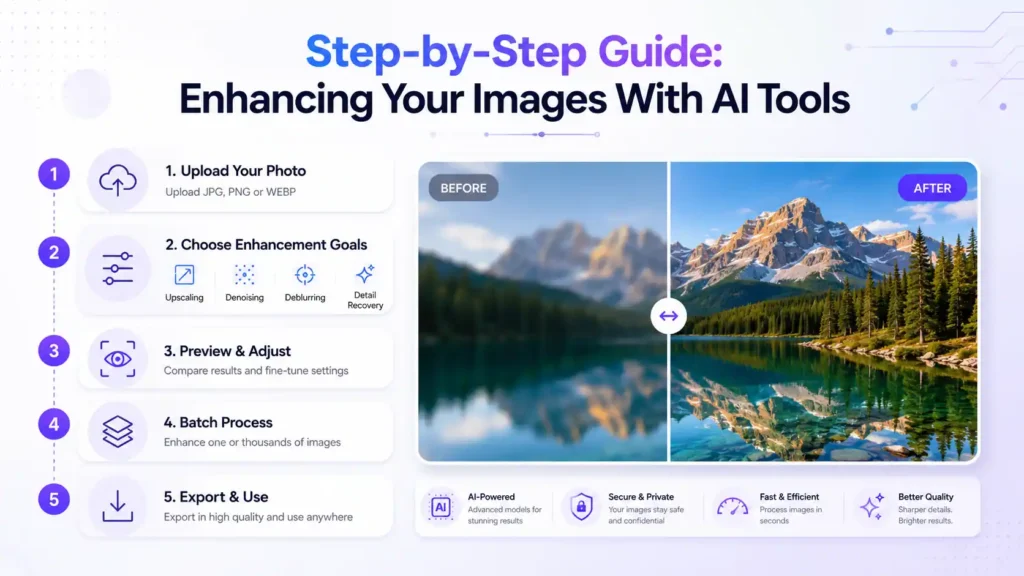
Step 1: Upload Your Photo
Start by uploading your low‑quality image. Most tools support JPEG, PNG, and newer formats like WebP or RAW.
Step 2: Choose Enhancement Goals
Decide if you want:
- Upscaling: Increase resolution for larger displays or print.
- Denoising: Remove grain or compression artifacts.
- Deblurring: Fix camera shake or focus issues.
- Detail Recovery: Add texture to skin, hair, or landscapes.
Step 3: Preview and Adjust Settings (If Available)
Professional tools like Topaz and Luminar let you fine‑tune parameters like sharpness, noise reduction, and texture intensity. Test before committing for the best balance.
Step 4: Batch Process (If Needed)
If you have many images, batch processing can save time — choose this option on tools that support it and let AI enhance them in one go.
Step 5: Export and Use
Once enhanced, export in high‑quality formats suitable for your platform — whether that’s social media, print, or web usage.
Best Practices for Making Your Visuals Stand Out
AI tools are powerful, but pairing them with smart practices increases their impact:
1. Don’t Over‑Enhance
Too much sharpening or artificial detail can make images look fake. Aim for a natural balance.
2. Choose the Correct Resolution for Your Platform
Upscale images just enough — overscaling by 16× isn’t always necessary unless for large prints.
3. Combine AI Tools With Creative Editing
AI can enhance quality, but composition, lighting adjustments, and color grading still make a big difference for visual storytelling.
4. Keep Source Files Safe
Always save originals — sometimes enhancement results vary, and having backups allows you to re‑process with different settings.
FAQ
Q1: What is the best AI image enhancer to make photos look professional?
The best AI image enhancer depends on your goals, but tools like Topaz Photo AI, Luminar Neo X, and Remini consistently rank high in quality and real‑world results. Professionals often choose Topaz for high‑resolution upscaling and detail recovery, while beginners like using Remini for portrait enhancement. Choosing the right tool depends on whether you want advanced control, ease of use, or mobile‑friendly convenience.
Q2: How does an AI image enhancer work to improve picture quality?
AI image enhancers use deep learning and neural networks to analyze your photo, detect blur, noise, and missing detail, and then intelligently reconstruct improved pixels. Instead of simple upscaling, these tools predict what high‑quality versions should look like, offering sharper edges, richer textures, and clearer contrast — resulting in a more professional, visually appealing photo.
Q3: Can AI enhancers upscale images to 4K or higher without losing quality?
Yes — the top AI image enhancers can upscale images to 4K, 8K, and even 16K resolutions while preserving detail and minimizing artifacts. This is especially useful for print design, large social visuals, banners, and professional portfolios where clarity matters. Tools like Topaz Photo AI and Upscayl are known for excellent high‑resolution results.
Q4: What is the best free AI image enhancer for beginners?
If you’re looking for a free AI image enhancer, tools like FineGrain and Upscayl offer great results without cost. FineGrain is browser‑based and easy to use, while Upscayl is open‑source and runs on your computer. These are perfect for content creators, bloggers, and casual users who want good quality without paying.
Q5: How do I choose between AI image enhancer apps and desktop software?
Choose based on your needs: desktop software (like Topaz or Luminar) offers faster performance and advanced features when you have a powerful computer. Online apps and mobile tools are easier and require no installation, but may have limits on resolution or file size. For professional use, desktop tools are usually preferred; for quick everyday tasks, web or mobile apps are more convenient.
Q6: Are AI image enhancers good for old photo restoration?
Yes, many AI enhancers excel at old photo restoration, helping to fix scratches, blur, and faded colors in vintage images. Tools like Remini use face‑focused AI models to sharpen facial features and enhance detail, making old memories look clearer and more vibrant.
Q7: Do AI image enhancers work on all types of photos?
Most AI enhancers work on a wide range of photos, including portraits, landscapes, product images, and low‑resolution pictures. Some specialize in portrait enhancement, while others focus on noise reduction or detail reconstruction. Always check the tool’s features to make sure it matches your photo type.